Showing posts with label update. Show all posts

Kindle Tips: Software Update v5.6.1.1 for original Paperwhite 1 (US, UK) ... Info and tips on how to use the features


Amazon has announced software update version 5.6.1.1 for the original Paperwhite-1

The announcement, posted in the Kindle Forums, was for a "free software update available for the original Kindle Paperwhite.  This update adds features including Word Wise and Family Library that were previously only available on newer generation Kindle e-readers."

The software update includes "general improvements and the following feature enhancements"

Added text in brackets and emphases in boldface or italics are mine:

~Word Wise -For readers learning English and kids learning to read, Word Wise, available on many English language titles, makes it easier to enjoy and quickly understand more challenging books.  Short and simple definitions automatically appear above difficult words, so you can keep reading with fewer interruptions.
[Tip: Here's a page on HOW to use Wordwise, including how to turn it off or on.  The page explains that not all books are wordwise-enabled.  Here's a link to Amazon's listing of currently Wordwise-enabled books.]
  To learn more or to see the various meanings the same word can have in different contexts, just tap on the word to bring up a simple card with definitions, synonyms, and more.
  You can adjust the number of hints you see with a simple slider, dialing them up or down as you learn and grow.  See a screenshot.

~Family Library- With Kindle and Kindle reading apps, you can access not only your own books, but also books from the Amazon account of a spouse or partner.  See a screenshot
[Tip: Prime members that use a business name can share free 2-day Prime-shipping among 4 employees sharing the space.]
~Kindle FreeTime Unlimited - An all-in-one subscription for kids that offers unlimited, ad-free access to more than 5,000 age-appropriate books, videos, educational apps and games, for as little as $2.99 per month.
  [Tip: Freetime Info Links for specific Kindle devices:
  Paperwhite 1; later Kindle eReaders; and Fire tablets
]
~Expanded X-Ray for Books - X-Ray now makes it easier to explore as you read-quickly flip through all the images in a book, and use the new timeline view to easily browse the most notable passages.  See a screenshot.

~Deeper Goodreads Integration - Goodreads on Kindle makes it quicker to access and update your reading status and adds the ability to preview and purchase books without leaving Goodreads.  See a screenshot.

~Enhanced Search - Makes it even easier to find what you're looking for by combining and previewing results from your Library, Goodreads and the Kindle Store on the same page.  See a screenshot

~About This Book- See information about the book as you start to read, including its place in a series and author information, plus mark it as "Currently Reading" on Goodreads.  See a screenshot

These features will be delivered automatically as part of a free, over-the-air software update in the coming weeks, or you can visit [the Paperwhite1 software page] to download the software update [U.S.]...'  [the UK Paperwhite 1 owners page here]

I corrected some links in the original announcement on the forums.

It's good to see Amazon continuing to support the original Kindle Paperwhite (2012).


Check often: Temporarily-free recently published Kindle books
  Guide to finding Free Kindle books and Sources.  Top 100 free bestsellers.  Liked-books under $1
UK-Only: recently published free books, bestsellers, or £5 Max ones
    Also, UK customers should see the UK store's Top 100 free bestsellers.

  *Click* to Return to the HOME PAGE.  Or click on the web browser's BACK button


Kindle Tips: Software update v5.4.5.1 for Paperwhite 2 is ready. REVISED for Footnote improvements.

New software update for Paperwhite 2
The description released August 11 at the software update page and at the forums just repeats exactly what the changes were for update v5.4.5 on July 28, 2014 (!)

However, knowledgeable customers say that there were complaints that the footnotes were now not working properly after v5.4.5, and they report that the footnote functioning is working well with this last week's updated release 5.4.5.1.

The links below will work for this update.  Below is a copy of what was posted for v5.4.5 on July 28.
  Bear in mind, that when it says "v5.4.5" all of it now applies also to v5.4.5.1.


The changes that took effect for v5.4.5 and which still apply for v5.4.5.1

NEW KINDLE PAPERWHITE 2 gets Software Update v5.4.5 has some general improvements and feature enhancements.

Many report never getting automated updates on their E-Ink readers.  In that case you can download the update-file and install it manually if wanting to get the feature updates.  More on that below.

This update was released last week.

Kindle Paperwhite 2 Software Upgrade to v5.4.5

  Devices involved: See Paperwhite 2 (US),   UK Paperwhite 2: here; Global Paperwhite 2: here.

The new, free software update available for Kindle Paperwhite 2 can be found here [U.S. and some international].

    [Here's the UK-only software update page]


Amazon's software update page explains how to check the software version currently on your Paperwhite 2.  I'm usually one of the last to receive software updates, so sometimes I do follow the step-by-step instructions to do a manual download and install to my Kindle if the change is important to me.  In my case, I have the Paperwhite 1, and there's no current update for that one.

This update normally automatically downloads and installs on the applicable Kindle Paperwhite 2 eventually;  however, as mentioned, you can also manually download the software and transfer the update to your device via USB cable.

Here are the feature enhancements they describe for update v5.4.5 [Emphases below are mine]
  • Sync to the Most Recent Page Read
    Any books you are reading on your Kindle Paperwhite will now sync to the most recent page read across all Kindle devices and/or reading apps registered to your Amazon account. You can still manually sync your Kindle Paperwhite to go to the furthest page read.  To learn more, go to Sync on Your Kindle Paperwhite.
  • Preview a PDF in Pan-and-Zoom Mode
    When viewing a PDF in pan-and-zoom mode, you will now see a small preview window in the margin of the screen.
  • Read a Sample While Your Physical Book Ships
    While you are waiting for select physical books to arrive at your doorstep, you can start reading the book right away by adding a sample of the book to your Kindle library.  With this release, these samples will be now available for download in the Cloud tab of your Kindle Paperwhite in addition to your other supported Kindle devices and apps. Any previous samples you have claimed through a physical book purchase will also be available in the Cloud to download. To learn more, go to Read While Your Book Ships.
A Reminder about how syncing of your reading between devices and apps is done
In order for this to work reliably, the changes to your last page read and any new annotations done (highlighting, notes and bookmarks) must be 'seen' by the servers at Amazon -- this means that your WiFi or 3G wireless connection would need to be 'on' at the time you close the book by tapping the Home icon.
   Once the Amazon servers note the changes, they'll be available to the next Kindle-compatible reader or app you open (with Wireless on that device turned On also).
  You can turn 'off' the WiFi or 3G Wireless connection after leaving the Kindle book reading, which will help maximize battery use on that device.)

  When an eInk screen is displaying a page but there is no change to that screen, the display is having no effect on the battery.
  When you change what's being displayed (changing or adding anything on the page, as in tapping it on the side to get a new page or when an action brings a pop-up window or dialog box), the display IS using the battery.  That's why just pressing the power button for only ~1 second puts the Kindle to 'sleep' during which it displays an image, which doesn't use the battery, but the Paperwhite light turns off.

  Leaving it in this sleep state doesn't draw battery power as a result of the image display itself.  If, however, WiFi is On during Sleep state, any activity with subscription downloads or a Special Offers download -will- use battery power.

  There is always very slow battery drain in between charges even when a device is turned off.

  So, the "Screen Off" is an relatively new choice on mine, I noticed.  This just blanks the screen and puts it into sleep state.  SOME have requested a blank screen so they know it's "Off" but, in this case, it's only that there's no image seen - not even Amazon's default images during normal sleep-screens.

Mentioned previously also:
  "Restart" acts more like a soft-reboot on a computer and clears up memory states that may be causing problems.

  There is NO option on my Paperwhite to completely Power Off or Shut down the Kindle.  My options are to (1) Cancel a longer key-press action, (2) Restart the Paperwhite (mine is a Paperwhite 1), or (3) choose "Screen Off."

  It could be that my dialog box for powering off is different from that seen by others because I chose not to get Special Offers sent to my Paperwhite (I accept Special Offers on my Kindle Fire tablets) and, therefore, blanking the screen with a "Screen Off" does not interfere with the marketing offers on the lockscreen.

  Some may choose to get the offers on the Paperwhite and, as a result, may not get the 'Screen Off' option.  That's just conjecture on my part.

  But, in that case, they seem to get the option to 'shut down' the Kindle.

  Also, in my case, holding in the power button for over 20 seconds (rather than 5 seconds) does still cause a Restart (and a clearing of current memory use), as in the past.


IF you experience unusual battery drain
Note that keeping your Kindle always connected to a Wi-Fi network can drain the battery faster under certain circumstances.  If you're experiencing that, then once you've got the update "over the air," put the Paperwhite back to "Airplane Mode ON" via the 'Settings' option on the Menu -- the option lets you toggle Wireless OFF, using the "Airplane On" choice.

  Amazon's Paperwhite development team won't return the Wireless Off/On choice to the front menu as they did last year for the Kindle Touch, removing the 'airplane mode' icon which confuses many.  It's very inconvenient to have the WiFi On/Off setting on a secondary menu and many, as a result, don't even know that they can turn WiFi Off if needed.

  Amazon probably prefers that we keep Wireless 'On' due to delivery of Special Offers but the battery-drain problem can occur when circumstances involve (1) subscriptions that are downloaded regularly (my New York Times Latest News subscription updates the Kindle edition about five times a day - $1.99/month)) or (2) due to a weaker connection that results from the distance from the WiFi router, in which case the device keeps trying to connect when a download is due (and that can be for the special offers that Amazon regularly needs to send for those who choose to opt for the less-expensive model with the special-offers feature) and is then constantly active.

  BUT, again, WiFi needs to be 'On' after you've read a book and made annotations for a session AND when you then want to be able to continue reading later, on another device (like a smartphone), starting at where you'd stopped.
  If WiFi isn't turned on, the Amazon servers won't have any way of knowing the last-page-read location nor any notes or highlighting you've made, which you'd want to be able to access on the other device.  So, a reminder on my usual recommendation:
1. When you're finished reading, tap the top-toolbar and press the HOME icon.
  That will 'close' the book session and record the last page read and log the annotations.
2. Tap the top of the Paperwhite to bring up the toolbar and menu icon.
3. If you see an airplane icon at the top, your WiFi is Off (and you're in "airplane" take-off mode).
4. Tap 'Settings'
5. Turn Airplane Mode OFF, and that'll turn WiFi ON.
6. At that point, the Kindle will try to sync your changes to the Server and will download anything that is pending (a subscription to a newspaper, magazine, or blog, usually).
7. After that's done, you can go ahead and leave WiFi ON if you have no problems with faster battery drain
      OR you can turn OFF the WiFi if you need to save battery power.

Only if you'd rather not wait -- DOWNLOADING and transferring the Update via USB
US:  Go to the Kindle Paperwhite Software Update v5.4.5 download section to get the instructions for the download and transfer to your Kindle via USB:
UK:  UK Paperwhite eReader owners can do the same for the UK-only page


Check often: Temporarily-free recently published Kindle books
  Guide to finding Free Kindle books and Sources.  Top 100 free bestsellers.  Liked-books under $1
UK-Only: recently published free books, bestsellers, or £5 Max ones
    Also, UK customers should see the UK store's Top 100 free bestsellers.

  *Click* to Return to the HOME PAGE.  Or click on the web browser's BACK button

Kindle Tips: Kindle for IOS update version 4.4 released; Kindle Placeholders, Notes Export, Sync to most recent page read - across all Kindle devices and apps, Wikipedia Smart Lookup

   
The Kindle Forum has an announcement that Kindle for IOS, v4.4 is ready for download.

 Here's a copy of the announcement (Any bolded emphases are mine).

' Initial post: Jul 29, 2014 1:41:40 PM PDT
Megan H. - Forum Moderator says:
(AMAZON) (AMAZON OFFICIAL)
We're pleased to announce the latest version of Kindle for iOS is now available in the Apple App Store.

What's New in Version 4.4?

Kindle for iOS Version 4.4 provides several customer-requested features that make sync and navigation easier.

* Sync to the most recent page read - Any books you are reading on Kindle for iOS will now sync to the most recent page read across all Kindle devices and/or reading apps registered to your Amazon account.
  Customers can still manually sync to the furthest page read from the left navigation menu.

* Kindle Placeholders - Allow customers the freedom to explore other areas of the book without losing their current place. Jump directly to previous locations with "placeholders" on the progress bar.

* Notes Export - Studying for the next exam or writing the next term paper just got easier. Students can now export notes, highlights, and more to e-mail from their "Print Replica" textbooks, giving students easy access to their information.

* Performance and stability improvements

* Wikipedia Smart Lookup: Select a word and learn more from Wikipedia in the Info Card at the bottom of the page. '

Re the notes export
Remember that there's a way for you to export notes and highlights from any Kindle book, not just the "Print Replica" textbooks. Kindle-compatible device- or app owners have a personal, password-protected website that holds your annotations for each book.  You can view them by your most recent highlights (which are grouped secondarily by book) or you can choose 'Books.'
You can copy (for emailing or personal logging) and print sections from these.

How the Placeholder feature works
In the Kindle Forum, Sonja S., a Forum Moderator explains:
' In reply to an earlier post on Aug 1, 2014 7:22:18 AM PDT
Sonja S. - Forum Moderator says:
(AMAZON) (AMAZON OFFICIAL)
Hey Karen, a placeholder is a temporary bookmark, represented as a dot on the progress bar.
  Placeholders mark the current location and the previous two locations visited.
The "oldest" placeholder disappears after a reader visits a third page.

Placeholders are added when navigating the book by any method other than page swipe.
  When you jump to another page in the book - for example, with the help of annotations or table of contents - a placeholder is added to the progress bar.
  Tapping this placeholder will return you to a previously visited page.
  In this way, you can quickly jump back and forth between the current page you're reading and another page recently visited.

  Note that these locations are stored locally on your device, and do not sync across devices.

Let us know how else we can help! '


Kindle reading-app Update - Where?
Go to the page for download instructions.
If you have iOS 6 or above, the normal steps listed there apply.
The page has an "Important" section for those who are still on iOS 5.


Check often: Temporarily-free recently published Kindle books
  Guide to finding Free Kindle books and Sources.  Top 100 free bestsellers.  Liked-books under $1
UK-Only: recently published free books, bestsellers, or £5 Max ones
    Also, UK customers should see the UK store's Top 100 free bestsellers.

  *Click* to Return to the HOME PAGE.  Or click on the web browser's BACK button

Kindle News: Kindle Paperwhite 2 software update v5.4.5 -- Sync to most recent page read across all Kindle devices + reading apps; Small preview window now in margin of PDF pan & zooms; Sample of beginning of a book ready in your Cloud while waiting for a physical book.


NEW KINDLE PAPERWHITE 2 gets Software Update v5.4.5 has some general improvements and feature enhancements.

Many report never getting automated updates on their E-Ink readers.  In that case you can download the update-file and install it manually if wanting to get the feature updates.  More on that below.

This update was released last week.

Kindle Paperwhite 2 Software Upgrade to v5.4.5

  Devices involved: See Paperwhite 2 (US),   UK Paperwhite 2: here; Global Paperwhite 2: here.

The new, free software update available for Kindle Paperwhite 2 can be found here [U.S. and some international].

    [Here's the UK-only software update page]


Amazon's software update page explains how to check the software version currently on your Paperwhite 2.  I'm usually one of the last to receive software updates, so sometimes I do follow the step-by-step instructions to do a manual download and install to my Kindle if the change is important to me.  In my case, I have the Paperwhite 1, and there's no current update for that one.

This update normally automatically downloads and installs on the applicable Kindle Paperwhite 2 eventually;  however, as mentioned, you can also manually download the software and transfer the update to your device via USB cable.

Here are the feature enhancements they describe for update v5.4.5 [Emphases below are mine]
  • Sync to the Most Recent Page Read
    Any books you are reading on your Kindle Paperwhite will now sync to the most recent page read across all Kindle devices and/or reading apps registered to your Amazon account. You can still manually sync your Kindle Paperwhite to go to the furthest page read.  To learn more, go to Sync on Your Kindle Paperwhite.
  • Preview a PDF in Pan-and-Zoom Mode
    When viewing a PDF in pan-and-zoom mode, you will now see a small preview window in the margin of the screen.
  • Read a Sample While Your Physical Book Ships
    While you are waiting for select physical books to arrive at your doorstep, you can start reading the book right away by adding a sample of the book to your Kindle library.  With this release, these samples will be now available for download in the Cloud tab of your Kindle Paperwhite in addition to your other supported Kindle devices and apps. Any previous samples you have claimed through a physical book purchase will also be available in the Cloud to download. To learn more, go to Read While Your Book Ships.
A Reminder about how syncing of your reading between devices and apps is done
In order for this to work reliably, the changes to your last page read and any new annotations done (highlighting, notes and bookmarks) must be 'seen' by the servers at Amazon -- this means that your WiFi or 3G wireless connection would need to be 'on' at the time you close the book by tapping the Home icon.
   Once the Amazon servers note the changes, they'll be available to the next Kindle-compatible reader or app you open (with Wireless on that device turned On also).
  You can turn 'off' the WiFi or 3G Wireless connection after leaving the Kindle book reading, which will help maximize battery use on that device.)

  When an eInk screen is displaying a page but there is no change to that screen, the display is having no effect on the battery.
  When you change what's being displayed (changing or adding anything on the page, as in tapping it on the side to get a new page or when an action brings a pop-up window or dialog box), the display IS using the battery.  That's why just pressing the power button for only ~1 second puts the Kindle to 'sleep' during which it displays an image, which doesn't use the battery, but the Paperwhite light turns off.

  Leaving it in this sleep state doesn't draw battery power as a result of the image display itself.  If, however, WiFi is On during Sleep state, any activity with subscription downloads or a Special Offers download -will- use battery power.

  There is always very slow battery drain in between charges even when a device is turned off.

  So, the "Screen Off" is an relatively new choice on mine, I noticed.  This just blanks the screen and puts it into sleep state.  SOME have requested a blank screen so they know it's "Off" but, in this case, it's only that there's no image seen - not even Amazon's default images during normal sleep-screens.

Mentioned previously also:
  "Restart" acts more like a soft-reboot on a computer and clears up memory states that may be causing problems.

  There is NO option on my Paperwhite to completely Power Off or Shut down the Kindle.  My options are to (1) Cancel a longer key-press action, (2) Restart the Paperwhite (mine is a Paperwhite 1), or (3) choose "Screen Off."

  It could be that my dialog box for powering off is different from that seen by others because I chose not to get Special Offers sent to my Paperwhite (I accept Special Offers on my Kindle Fire tablets) and, therefore, blanking the screen with a "Screen Off" does not interfere with the marketing offers on the lockscreen.

  Some may choose to get the offers on the Paperwhite and, as a result, may not get the 'Screen Off' option.  That's just conjecture on my part.

  But, in that case, they seem to get the option to 'shut down' the Kindle.

  Also, in my case, holding in the power button for over 20 seconds (rather than 5 seconds) does still cause a Restart (and a clearing of current memory use), as in the past.


IF you experience unusual battery drain
Note that keeping your Kindle always connected to a Wi-Fi network can drain the battery faster under certain circumstances.  If you're experiencing that, then once you've got the update "over the air," put the Paperwhite back to "Airplane Mode ON" via the 'Settings' option on the Menu -- the option lets you toggle Wireless OFF, using the "Airplane On" choice.

  Amazon's Paperwhite development team won't return the Wireless Off/On choice to the front menu as they did last year for the Kindle Touch, removing the 'airplane mode' icon which confuses many.  It's very inconvenient to have the WiFi On/Off setting on a secondary menu and many, as a result, don't even know that they can turn WiFi Off if needed.

  Amazon probably prefers that we keep Wireless 'On' due to delivery of Special Offers but the battery-drain problem can occur when circumstances involve (1) subscriptions that are downloaded regularly (my New York Times Latest News subscription updates the Kindle edition about five times a day - $1.99/month)) or (2) due to a weaker connection that results from the distance from the WiFi router, in which case the device keeps trying to connect when a download is due (and that can be for the special offers that Amazon regularly needs to send for those who choose to opt for the less-expensive model with the special-offers feature) and is then constantly active.

  BUT, again, WiFi needs to be 'On' after you've read a book and made annotations for a session AND when you then want to be able to continue reading later, on another device (like a smartphone), starting at where you'd stopped.
  If WiFi isn't turned on, the Amazon servers won't have any way of knowing the last-page-read location nor any notes or highlighting you've made, which you'd want to be able to access on the other device.  So, a reminder on my usual recommendation:
1. When you're finished reading, tap the top-toolbar and press the HOME icon.
  That will 'close' the book session and record the last page read and log the annotations.
2. Tap the top of the Paperwhite to bring up the toolbar and menu icon.
3. If you see an airplane icon at the top, your WiFi is Off (and you're in "airplane" take-off mode).
4. Tap 'Settings'
5. Turn Airplane Mode OFF, and that'll turn WiFi ON.
6. At that point, the Kindle will try to sync your changes to the Server and will download anything that is pending (a subscription to a newspaper, magazine, or blog, usually).
7. After that's done, you can go ahead and leave WiFi ON if you have no problems with faster battery drain
      OR you can turn OFF the WiFi if you need to save battery power.

Only if you'd rather not wait -- DOWNLOADING and transferring the Update via USB
US:  Go to the Kindle Paperwhite Software Update v5.4.5 download section to get the instructions for the download and transfer to your Kindle via USB:
UK:  UK Paperwhite eReader owners can do the same for the UK-only page


Check often: Temporarily-free recently published Kindle books
  Guide to finding Free Kindle books and Sources.  Top 100 free bestsellers.  Liked-books under $1
UK-Only: recently published free books, bestsellers, or £5 Max ones
    Also, UK customers should see the UK store's Top 100 free bestsellers.

  *Click* to Return to the HOME PAGE.  Or click on the web browser's BACK button


Kindle Tips: Kindle for Android v4.4 is ready, should fix v4.3 problems and has enhanced features. Free Android App of the day (today only) is the popular The Bard's Tale, usually $3. More solid news of Amazon's coming streaming-video-(maybe games too)-to-TV gizmo. UPDATED

POPULAR $2.99 APP IS FREE JUST TODAY, Wed, 3/19/14

For those who may have missed it (I don't look most days myself), a popular app is the Free Android App of the Day today. It's The Bard's Tale"

And, while we're on the subject of Android apps, the noteworthy Tom Semple sent an alert the other day to the new Kindle For Android update v4.4 arriving finally, after some problems reported with v4.3, somewhat ameliorated by the response by a customer rep (to a customer) that explained which Android app users were most likely to be affected by the problem(s).

The latest Kindle for Android update v4.4 update released this week includes the following features and performance enhancements:
'
* Select additional fonts while reading
* Use the enhanced Table of Contents to search and navigate your book (if available)
* Enable and disable auto-brightness while reading
* Faster book cover loading
* Fixed sensitivity when using the volume buttons to turn pages
'

Amazon's own video-streaming gizmo said to be ready very soon, possibly early in April
CBS Moneywatch News has a details from two stories on this, from Wall Street Journal and TechCrunch.  It would compete with Google's Chromecast and Roku products but may be able to do even more.  Click the link to see a good description of what it would do and links to the original stories.

  Update - The Wall Street Journal article by Greg Bensinger is protected behind a firewall, but from time to time they allow access via Google Searches if you google the full title of the article.  Then the full article is shown in those cases.

Some additional details excerpted:
' ... Pricing remains unclear, though the people familiar with the company's plans said the device likely would come with incentives available to members of Amazon's Prime streaming video and shipping program.
...
Streaming video is becoming an important new arena for Amazon, as it battles for viewers with Netflix Inc., Hulu LLC and Time Warner Inc.'s HBO Go.
...
In recent weeks, Amazon has held talks with record companies and music publishers in hopes of creating an on-demand music-streaming service for Prime customers, people familiar with the matter have said.

Amazon has distributed a pre-production version of its streaming device to select app developers, and has indicated it will carry the Fire name Amazon uses for Kindle tablet computers, these people said... '


Current Kindle Models for reference, plus free-ebook search links.
US:
New Kindle Fire HD 7" 2nd Gen - $139/169
Kindle Fire HDX 7" 16-64GB - $229/269/309
Kindle Fire HDX 8.9" 16-64GB - $379/429/479
- with 4G added: $479/529/579
Kindle Fire HD 8.9" 16GB - 1st Gen $269 $229
  $299 Price rise ~2/24/14
- 32GB w/ no special-offers: $314
Kindle NoTouch ("Kindle") - $69/$89
Kindle Touch WiFi - $99
Kindle Paperwhite 2, WiFi - $119/$139
Kindle Paperwhite 2, WiFi+3G - $189
Kindle Keybd 3G - $139/$159, Free web
Kindle DX - $379 $199
UK:
Kindle Basic, NoTouch - £59
Kindle Paperwhite 2, WiFi - 
£109
Kindle Paperwhite2 3G, UK - 
£169
Kindle Fire Basic HD 8/16GB, UK - 
 from £119
Kindle Fire HDX 7" 16-64GB, UK - 
from £199. 4G/3G
Kindle Fire HDX 8.9" 16-64GB, UK - from £329. 4G/3G

CANADA - Kindlestore, CDN-$
Kindle Basic, NoTouch - $79
Kindle Paperwhite 2 - $139
Kindle Paperwhite 2, 3G - $209
KFire HD Yr 2012 7" $214,  8.9" $244.
Yr 2013 KFires: HD Gen2, HDX line
India - Amazon India


*OTHER Int'l pages*
Kindle NoTouch Basic - $89
Paperwhite 2 WiFi $139, 3G/Wifi $209
KFire HD Yr 2012: 7" $214,  8.9" $244
Yr 2013: HD Gen2 + HDX line

Australia Kindlestore
France Boutique Kindle
Deutschland - Kindle Store
Italia - Kindle Store
Spain - Tienda Kindle
Brazil - Amazon Brazil
China - Amazon China [?]
Amazon Japan - Japan

  For daily free ebooks, check the following links:
Temporarily-free books - Non-classics
USA: by:
   Publication Date  
   Bestselling   High-ratings

UK: PubDate   Popular

The Kindle Daily Deal

What is 3G? and "WiFi"?       Battery Care

Highly-rated under $1
,  Newest: $1-$2, $2-$3
Most Popular Free K-Books
U.S. & Int'l (NOT UK):
   Top 100 free
UK-Only:
   Top 100 free

Guide to finding Free Kindle books and Sources.

USEFUL for your Kindle Keyboard (U.S. only, currently):
  99c Notepad 1.1,   99c Calculator,
  99c Calendar,   99c Converter

  *Click* to Return to the HOME PAGE.  Or click on the web browser's BACK button

Kindle News: Kindle Paperwhite 2 software update v5.4.3 improves Cloud Collections, PDF pan and zoom. Adds reading-toolbar access to notes. Allows cancellation of KBook purchase during a download. Offers new Power-off options


NEW KINDLE PAPERWHITE 2 Software Update v5.4.3 with substantial feature improvements

Kindle Paperwhite 2 Software Upgrade to v5.4.3

  Devices involved: See Paperwhite 2 (US),   UK Paperwhite 2: here; Global Paperwhite 2: here.

Tne new, free software update available for Kindle Paperwhite 2 can be found [here] [U.S. and some international]

    [Here's the UK-only software update page]

When we had the new software update for the original Kindle Paperwhite 1 the other day, I also linked to the software update pages for the Paperwhite 2).  This separate blog entry highlights the specific features and provides links for both U.S. and UK readers as well as for some International Kindle eReader owners.

The softwares page explain how to check the software version currently on your Paperwhite 2.  I'm usually one of the last to receive software updates, so sometimes I do follow the step-by-step instructions to do a manual download and install to my Kindle if the change is important to me.

This update automatically downloads and installs on the applicable Kindle Paperwhite 2 eventually;  however, as mentioned, you can also manually download the software and transfer the update to your device via USB cable.

Here are the feature enhancements they describe for update v5.4.3 [Emphases below are mine]
* Access Notes from the Reading Menu
While reading, you can view all of your notes by tapping the Menu icon and then selecting Notes. You can also continue to access the Notes tab from the Go To menu in the reading toolbar.  To learn more, go to Add, View, Edit or Remove Notes (US) or, for UK: here.

* Manage Cloud Collections
Use Cloud Collections to organize titles in custom categories and store your collections in the Cloud.  To learn more, go to Organize Your Content with Cloud Collections (US) or, for UK: here.

* PDF Improvements
Pan and zoom within PDF documents more quickly and easily, and adjust the margins for an optimized reading experience.

* Cancel Full Book Purchase from within a Sample
While reading a book sample, you can view the price of the full book and purchase with one tap.  You can also cancel the purchase before the download is complete by tapping cancel purchase.

In a forum discussion, customer and Kindle Forum Pro CBRetriever wrote the following about changes noticed for both Paperwhite 1 and 2 in the (1) Cloud Collections processing (which AVOIDS the Paperwhite 2's initial update problems from a default-automatic-importing of Collections from ALL other devices sharing the same account) and (2) Kindle Paperwhite Restart procedure.  (Bracketed info and emphases are mine):
' It didn't import any collections from my other kindles (YAY!!!!) not even in the Cloud

... my notes so far:

There's another new thing I've never seen before - when I hold the button in for 30 seconds, it doesn't restart, but I'm given 3 choices and I had to pick one (Shut Down, Cancel or Restart) I'm wondering if the new PW2 has the same choices [it DOES] ... I also had to reboot since it came up with a 2G and not a 3G connection. My collections have stars...

It did not bring in the Collections from other Devices.  I have now added 11 more dictionaries and user guides... I had to go download the user guide via manage Your Kindle - it didn't automatically download. ' [UK Paperwhite 2 user's guide here]

New Power-off Options display
  Oddly, my Paperwhite pop-up dialog box showed options different from what's described above for both Paperwhite versions.  The choices I saw during the attempts to either Power Off (holding the Power On/Off button for ~4 seconds) or force a clean "Restart" (holding the Power On/Off button for 20+ seconds) were:
"Cancel | Restart ! Screen Off" ...

  When an eInk screen is displaying a page but there is no change to that screen, the display is having no effect on the battery.
  When you change what's being displayed (changing or adding anything on the page, as in tapping it on the side to get a new page or when an action brings a pop-up window or dialog box), the display IS using the battery.  That's why just pressing the power button for only ~1 second puts the Kindle to 'sleep' during which it displays an image but the Paperwhite light turns off.

  Leaving it in this sleep state doesn't draw battery power as a result of the image display itself.  If, however, WiFi is On during Sleep state, any activity with subscription downloads or a Special Offers download -will- use battery power.

  There is always very slow battery drain in between charges even when a device is turned off.

  So, the "Screen Off" is an odd new choice on mine.  This just blanks the screen and puts it into sleep state.  SOME have requested a blank screen so they know it's "Off" but, in this case, it's only that there's no image seen - not even Amazon's default images during normal sleep-screens.

  "Restart" acts more like a soft-reboot on a computer and clears up memory states that may be causing problems.

  There is NO option on my Paperwhite to completely Power Off or Shut down the Kindle.

  It could be that my dialog box for powering off is different because I chose not to get Special Offers sent to my Paperwhite (I accept Special Offers on my Kindle Fire tablets) and, therefore, blanking the screen with a "Screen Off" does not interfere with the marketing offers on the lockscreen.

  CBRetriever, quoted above, may choose to get the offers on the Paperwhite and, as a result, doesn't get the 'Screen Off' option.  That's just conjecture on my part.

  But she does get the option to 'shut down' her Kindle.  Odd.

  Also, in my case, holding in the power button for over 20 seconds did cause a Restart, as in the past.


IF you experience unusual battery drain
Note that keeping your Kindle always connected to a Wi-Fi network can drain the battery faster under certain circumstances.  If you're experiencing that, then once you've got the update "over the air," put the Paperwhite back to "Airplane Mode ON" via the 'Settings' option on the Menu -- the option lets you toggle Wireless OFF, using the "Airplane On" choice.

  Amazon's Paperwhite development team won't return the Wireless Off/On choice to the front menu as they did last year for the Kindle Touch, removing the 'airplane mode' icon which confuses many.  It's very inconvenient to have the WiFi On/Off setting on a secondary menu and many, as a result, don't even know that they can turn WiFi Off if needed.

  Amazon probably prefers that we keep Wireless 'On' due to delivery of Special Offers but the battery-drain problem can occur when circumstances involve (1) subscriptions that are downloaded regularly (my New York Times Latest News subscription updates the Kindle edition about five times a day - $1.99/month)) or (2) due to a weaker connection that results from the distance from the WiFi router, in which case the device keeps trying to connect when a download is due (and that can be for the special offers that Amazon regularly needs to send for those who choose to opt for the less-expensive model with the special-offers feature) and is then constanty active.

  BUT WiFi needs to be 'On' after you've read a book and made annotations for a session AND when you then want to be able to continue reading later, on another device (like a smartphone), starting at where you'd stopped.
  If WiFi isn't turned on, the Amazon servers won't have any way of knowing the last-page-read location nor any notes or highlighting you've made, which you'd want to be able to access on the other device.  So, a recommendation:
1. When you're finished reading, tap the top-toolbar and press the HOME icon.
  That will 'close' the book session and record the last page read and log the annotations.
2. Tap the top of the Paperwhite to bring up the toolbar and menu icon.
3. If you see an airplane icon at the top, your WiFi is Off (and you're in "airplane" take-off mode).
4. Tap 'Settings'
5. Turn Airplane Mode OFF, and that'll turn WiFi ON.
6. At that point, the Kindle will try to sync your changes to the Server and will download anything that is pending (a subscription to a newspaper, magazine, or blog, usually).
7. After that's done, you can go ahead and leave WiFi ON if you have no problems with faster battery drain
      OR you can turn OFF the WiFi if you need to save battery power.

Only if you'd rather not wait -- DOWNLOADING and transferring the Update via USB
US:  Go to the Kindle Paperwhite Software Update v5.4.3 download section to get the instructions for the download and transfer to your Kindle via USB:
UK:  UK Paperwhite eReader owners can do the same for the UK-only page


Check often: Temporarily-free recently published Kindle books
  Guide to finding Free Kindle books and Sources.  Top 100 free bestsellers.  Liked-books under $1
UK-Only: recently published free books, bestsellers, or £5 Max ones
    Also, UK customers should see the UK store's Top 100 free bestsellers.

  *Click* to Return to the HOME PAGE.  Or click on the web browser's BACK button


Kindle Tips: Large Software update v5.4.4 for Paperwhite 1 (Yr 2012). REVISED for New power-off options. [Paperwhite 2 also being updated, separately, linked to here]

KINDLE PAPERWHITE 1 Software Update v5.4.4

Kindle Paperwhite Software Upgrade from v5.3.9 to v5.4.4.

The Kindle Forum has an announcement that a major software update to the first Kindle Paperwhite is available, adding features to Kindle Paperwhite 1 that were first seen on the Paperwhite 2, the later and current model with a faster processor.  (A Paperwhite 1 U.S/ software update {UK page here} is also ready.)

  Affected Paperwhite models: See Paperwhite 1 (US);   (UK Paperwhite 1: here;  Global Paperwhite 1: here.)   [Bracketed notes are mine.]

  The new, free software update available for Kindle Paperwhite 1 can be found [here] [U.S.and international]

    [And Here's the UK-only software update page.]


 The software page tells you how to check the software version currently on your Paperwhite.  Mine still has v5.3.9 on it rather than v5.4.4

This update automatically downloads and installs on the applicable Kindle Paperwhite; however, you can also manually download the software and transfer the update to your device via USB cable.

  I've revised this blog entry March 10 to add, at the bottom, new information on the Power off options.

The software update includes general improvements and the following new features:
* Kindle FreeTime:
FreeTime lets you create personalized profiles for kids, and give them access to titles from your collection of books. Kids can keep track of their personal reading progress and earn achievement badges. To learn more, go to Kindle FreeTime

* Goodreads on Kindle (US only)
Connect with the world's largest community for readers from your Kindle Paperwhite. See what your friends are reading, share notes, and rate the books you read. To learn more, go to Find and Share Books with Goodreads on Kindle.

* Cloud Collections [Long awaited]
Use Cloud Collections to organize your content in custom categories. See your collections in a Collections view, and customize where your collections show on your device. To learn more, go to Organize Your Content with Cloud Collections.

* Page Flip [Great feature many of us have hoped for]
While reading, you can skim the book page-by-page, scan by chapter, or skip to the end for a sneak peek without losing your place. To learn more, go to Go To Other Locations in a Book

* Enhanced Bookmarks, Highlights & Notes
Access and manage all of your bookmarks, highlights, and notes more quickly and easily. To learn more, go to Bookmarks, Highlights & Notes

* Smart Lookup
When you look up a word or character, Smart Lookup provides you with dictionary, X-Ray, and Wikipedia information.To learn more, go to Explore Your Book with X-Ray.

* Vocabulary Builder
Words looked up in the dictionary are automatically added to Vocabulary Builder. View the definition and usage of the words, and quiz yourself with flashcards. To learn more, go to Expand Your Vocabulary. '

In a forum discussion, Kindle Forum Pro CBRetriever wrote the following about changes noticed in the (1) Cloud Collections processing (which AVOIDS the Paperwhite 2 problems from a default-automatic-importing of Collections from ALL other devices sharing the same account) and (2) Kindle Paperwhite Restart procedure.  (Bracketed info and emphases are mine):
' It didn't import any collections from my other kindles (YAY!!!!) not even in the Cloud

... my notes so far:

There's another new thing I've never seen before - when I hold the button in for 30 seconds, it doesn't restart, but I'm given 3 choices and I had to pick one (Shut Down, Cancel or Restart) I'm wondering if the new PW2 has the same choices [it DOES] ... I also had to reboot since it came up with a 2G and not a 3G connection. My collections have stars...

It did not bring in the Collections from other Devices.  I have now added 11 more dictionaries and user guides... I had to go download the user guide via manage Your Kindle - it didn't automatically download. ' [UK user's guide here]

New Power-off Options display
  Oddly, my Paperwhite 1's pop-up dialog box showed options different from what's described above.  The choices I saw during the attempts to either Power Off (holding the Power On/Off button for ~4 seconds) or force a clean "Restart" (holding the Power On/Off button for 20+ seconds) were:
"Cancel | Restart ! Screen Off" ...

  When an eInk screen is displaying a page but there is no change to that screen, the display is having no effect on the battery.
  When you change what's being displayed (changing or adding anything on the page, as in tapping it on the side to get a new page or when an action brings a pop-up window or dialog box), the display is not using the battery.  That's why just pressing the power button for only ~1 second puts the Kindle to 'sleep' during which it displays an image but the Paperwhite light turns off.

  Leaving it in this sleep state doesn't draw battery power as a result of the image display itself.  If, however, WiFi is On during Sleep state, any activity with subscription downloads or a Special Offers download -will- use battery power.

  There is always very slow battery drain in between charges even when a device is turned off.

  So, the "Screen Off" is an odd new choice on mine.  This just blanks the screen and puts it into sleep state.  SOME have requested a blank screen so they know it's "Off" but, in this case, it's only that there's no image seen - not even Amazon's default images during normal sleep-screens.

  "Restart" acts more like a soft-reboot on a computer and clears up memory states that may be causing problems.

  There is NO option on my Paperwhite 1 to completely Power Off or Shut down the Kindle.

  It could be that my dialog box for powering off is different because I chose not to get Special Offers sent to my Paperwhite (I accept Special Offers on my Kindle Fire tablets though) and, therefore, blanking the screen with a "Screen Off" does not interfere with the marketing offers on the lockscreen.

  CBRetriever, quoted above, may choose to get the offers on the Paperwhite and, as a result, doesn't get the 'Screen Off' option.  That's just conjecture on my part.

  But she does get the option to 'shut down' her Kindle.  Odd.

  Also, in my case, holding in the power button for over 20 seconds did cause a Restart, as in the past.


IF you experience unusual battery drain
Note that keeping your Kindle always connected to a Wi-Fi network can drain the battery faster under certain circumstances.  If you're experiencing that, then once you've got the update "over the air," put the Paperwhite back to "Airplane Mode ON" via the 'Settings' option on the Menu -- the option lets you toggle Wireless OFF, using the "Airplane On" choice.

  Amazon's Paperwhite development team won't return the Wireless Off/On choice to the front menu as they did last year for the Kindle Touch, removing the 'airplane mode' icon which confuses many.  It's very inconvenient to have the WiFi On/Off setting on a secondary menu and many, as a result, don't even know that they can turn WiFi Off if needed.

  Amazon probably prefers that we keep Wireless 'On' due to delivery of Special Offers but the battery-drain problem can occur when circumstances involve (1) subscriptions that are downloaded regularly (my New York Times Latest News subscription updates the Kindle edition about five times a day - $1.99/month) or (2) due to a weaker connection that results from the distance from the WiFi router, in which case the device keeps trying to connect when a download is due (and that can be for the special offers that Amazon regularly needs to send for those who choose to opt for the less-expensive model with the special-offers feature) and is then constanty active.

  BUT WiFi needs to be 'On' after you've read a book and made annotations for a session AND when you then want to be able to continue reading later, on another device (like a smartphone), starting at where you'd stopped.
  If WiFi isn't turned on, the Amazon servers won't have any way of knowing the last-page-read location nor any notes or highlighting you've made, which you'd want to be able to access on the other device.  So, a recommendation:
1. When you're finished reading, tap the top-toolbar and press the HOME icon.
  That will 'close' the book session and record the last page read and log the annotations.
2. Tap the top of the Paperwhite to bring up the toolbar and menu icon.
3. If you see an airplane icon at the top, your WiFi is Off (and you're in "airplane" take-off mode).
4. Tap 'Settings'
5. Turn Airplane Mode OFF, and that'll turn WiFi ON.
6. At that point, the Kindle will try to sync your changes to the Server and will download anything that is pending (a subscription to a newspaper, magazine, or blog, usually).
7. After that's done, you can go ahead and leave WiFi ON if you have no problems with faster battery drain
      OR you can turn OFF the WiFi if you need to save battery power.


Only if you'd rather not wait - DOWNLOADING and transferring the Update via USB
US:  Go to the Kindle Paperwhite Software Update v5.4.4 download section to get the instructions for the download and transfer to your Kindle via USB:
UK:  You can do the same for the UK-only page


Check often: Temporarily-free recently published Kindle books
  Guide to finding Free Kindle books and Sources.  Top 100 free bestsellers.  Liked-books under $1
UK-Only: recently published free books, bestsellers, or £5 Max ones
    Also, UK customers should see the UK store's Top 100 free bestsellers.

  *Click* to Return to the HOME PAGE.  Or click on the web browser's BACK button

Kindle News: Newish "100 Books of a Lifetime" pages. Prime program fees being increased (UK and US). Kindle for iOS app update v4.1.2. US/UK Kindle HDX/HD2 software updates v11.3.2.1, v13.3.2.1, and v14.3.2.1. China gets the latest Kindle tablets. Kindle-compatible Kaplan GMAT course available for business school students. Sony Reader closes its bookstore: reactions. Kindle HD 8.9"-1st gen price has gone up. A good DSLR camera bundle.


Amazon has a newish book feature and set of pages
that recommend '100 books to read in a lifetime' - featuring:
  1. Amazon Editors' choices
     (This is the feature's "Main page" link, also used for the image.)
' We wanted the list to cover all stages of a life (which is why you'll find children's books in here), and we didn't want the list to feel like homework. Of course, no such list can be comprehensive – our lives, we hope, are long and varied – but we talked and argued and sifted and argued some more and came up with a list, our list, of favorites '
  The Editors' choices total 149 as of today (one way to settle arguments for a list of 100).
  If you scroll to the bottom, you can choose to see these sorted by Amazon's usual alternate viewing options.

  2. Readers' picks from Goodreads

  This set of readers' choices IS kept to 100 books.


AMAZON'S PRIME PROGRAM PRICING IS GOING UP
  U.S. mostly:
Amazon announced during their 4th quarter earnings call that they are "considering" raising the price of Prime two-day shipping (U.S.), which includes 40,000+ movies and full tv episodes as instant video streamable at no added cost in the US and the ability to borrow one Prime Eligible Kindle book per calendar month from a choice of 527,000+ books, with no waiting period or due-date.

  It's been $79/yr (or $6.58/mo., broken down) and they may raise it by $20 to $40.  (A $40 increase will not work for most, in my opinion and would be a destructive move.)  It's possible they'll begin to charge monthly or quarterly, in addiiton to annually, to encourage customers to sign up and/or stay with the program.

  Amazon CFO Thomas Szkutak said, "...shipping costs have gone up a lot. Fuel costs have gone up a lot."

UK:
Amazon UK HAS already announced new Prime program pricing effective YESTERDAY.  The older £49/yr rate went up, to £79 Feb. 26.  They had 'new' signups for the lower rate but that ended last night; I didn't read about it until yesterday.  Regular users of the UK site will have seen the offers though.
' Prime members in the UK are seeing the price increase in the wake of Amazon's 2011 purchase of LoveFilm.  That company's offerings will become the linchpin in Amazon UK Prime's streaming movie and TV service, which will provide unlimited viewing and access to such content across a broad variety of devices... '

  In connection with the above, Amazon UK has rebranded the Lovefilm feature to 'Prime Instant Video' for UK.
  Trusted Reviews has an excellent article on "How Amazon Prime Instant UK Affects Lovefilm and Amazon Prime Users":
' When you break the new charges down, it's much better value if you currently maintain a Prime and Lovefilm Instant account. A Lovefilm Instant subscription currently runs to just under £72 on its own. Add that to the current Prime charge, and you’re looking at a saving of £42. ' [vs the new £79/yr that covers both].

  There is also a new deal between Warner Bros. and Lovefilm/Amazon Instant Video


UK KINDLE HDX/HD SALE TODAY - Feb 27 - through March 4
I saw that Amazon-UK is celebrating the launch of Amazon Prime-UK with a 20% Sale on the Kindle HDX/HD tablets.  This is the popup box I got just now:
' Limited-time Offer - Save 20% on all Kindle Fire Tablets
To celebrate the launch of Amazon Instant Video and Prime Instant Video, we are offering a saving of 20% on all Kindle Fire Tablets, for a limited time only

Limit two per customer, while supplies last.  UK customers only.  Discount valid on all versions of Kindle Fire HD, Kindle Fire HD 8.9", Kindle Fire HDX, and Kindle Fire HDX 8.9" tablets sold and shipped by Amazon EU Sarl. It does not apply to the same products sold by other sellers. Amazon reserves the right to cancel the promotion at any time. Promo applies to the lowest priced qualifying item and may not be combined with other offers. If you return items purchased using a promo code, we will subtract the value of the discount from your return credit. Offer expires March 04, 11:59 PM GMT. Offer not valid with 1-Click ordering. Void where prohibited. '

GENERAL FEATURES of Prime
They're spelled out on the
* Prime-US and
* Prime-UK pages.

  Recommendation
Those who've been interested in the U.S. Prime program but have never subscribed should watch for announcements of price increases.  In the UK, Amazon gave them a few days to decide to take advantage of the lower rate until the launch on Wednesday, and something similar to that will likely happen with the U.S. program.
  I'm back on the blog (probably every other day) and will check for announcements.


RECENT MINOR SOFTWARE UPDATES
  Kindle for iOS 4.1.2 has been out quietly for a few weeks and this update seems to have solved most of the problems that people were having with the handling of the Collections feature in update v4.1.1. An example:
' In reply to an earlier post on Feb 4, 2014 10:43:32 PM PST
Last edited by the author on Feb 4, 2014 10:47:13 PM PST
Cindy says:

My library is 10,800 approx and I can find the oldest book in my cloud in less than a minute. It seems very fast. Awesome. I meant to add that my collections didn't change they are exactly how they were before the update and I was able to put that oldest book into a collection easily and quickly. '
You can of course install the update from iTunes, and if you're having any problem doing that, some recommend you UNinstall the current Kindle for iOS app and then install the current updated version.

  SOFTWARE UPDATE version x.3.2.1 (for latest tablet line)
The new HDX/HD line of tablets released late 2013 has had a minor maintenance update that's already gone "over the air" via WiFi, when enabled, to probably most regular users.

  This update would include performance and battery life improvements, and bug fixes, and those who noticed the update reported it's solved some problems for them.

  These updates are being delivered, as mentioned, wirelessly as usual in a distribution over a few weeks -- but if you didn't get it and would rather not wait for the automated update, you can do a manual update by downloading the software and updating your device via a USB cable.  Here are direct links to the software-update pages for the 3 tablets involved (emphases are mine):

  US
  Update Page for Kindle Fire HD 7" 2nd Gen
  Update Page for Kindle Fire HDX 7"
  Update Page for Kindle Fire HDX 8.9"

  UK
  Here's the UK software updates main page

  Notice that at the intro page for each tablet type, there's an almost now unnoticeable link to a page that shows you how to Determine Your Software Version.  You'll see this link in light-blue on the once-again re-worked pages for even-whiter layout (which is almost blinding for me, and the light blue text links are harder to read on the glaring white layout that most larger website programmers love -- programmers tend to be young people with no eye probs yet).

If the determining page indicates your device's software does not have the latest one installed, you can follow the instructions to do a manual download and install.

The previous software update (versions x.3.1) for these tablets added several major features.  Version x.3.2.1 has mainly performance improvements in connection with these.


PRICE CHANGE ON HDX 8.9" 1st Gen (U.S.)
Amazon's current pricing as of today for the First Generation Kindle HD 8.9" tablet (with microHDMI ouput) went back UP to $299 (from $229, its price most of the time in recent months).   I first noticed this on Feb 24 and have no idea why the price went back up.


QUICK LINKS TO OTHER NEWS in a Kindle world:
1. "Kaplan Test Prep has collaborated with Amazon to bring its GMAT course book directly to students enrolled in Kaplan courses using the cross-platform Kindle reading apps and Kindle Fire tablets—making it the first Kindle-compatible Kaplan GMAT course available for aspiring business school students.  Kaplan GMAT students will have the ability to study across multiple devices—Kindle Fire and Android tablets, iPads, PCs and Macs—and take advantage of features such as note taking, highlighting, tracking progress, word look up, searching and syncing across Kindle reading apps and Kindle Fire tablets. The digital offering will enable increased study flexibility for Kaplan GMAT students."

2. "Angry Customers Raise Valid Points about Sony Closing Reader Store and Switching to Kobo", by Michael Kozlowski

These are Sony eReader customer reactions to the news "that Sony was closing their online Reader Store and transitioning all of their North American customers to Kobo."

3. The HDX/HD line of tablets go on sale in China


A good bundled camera kit
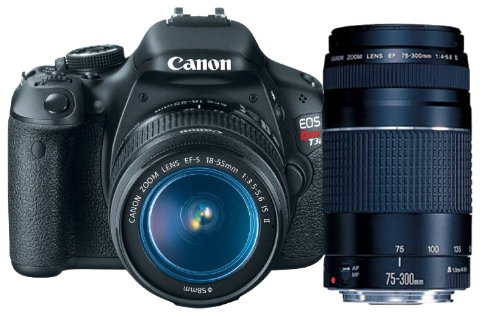
Amazon's camera-deals for the week included one of special interest to me because the Canon Rebel involved is the updated version of the camera I use and it's a DSLR with HD Video (while mine doesn't have video).  The Canon Rebel t3i bundle comes with not only the EF-S 18-55mm f/3.5-5.6 IS Lens (you can get the basic camera + lens for $500 at Amazon) but also the Canon EF 75-300mm f/4-5.6 III Telephoto Zoom Lens, for $599 for the bundle. (List price is $1,049, but one really never has to pay list price), and currently this bundle has 132 customer reviews with an average 4.8 stars rating.  This is a Prime-eligible product with free shipping.

Here's a recent photo I took with the Year 2006 Canon EF 70-100mm telephoto lens, which is not one of Canon's "L" lens models but provides sharp pictures in good light (and is 3 times the list price of the 75-300 lens bundled here).

  While the bundled large-zoom lens gives you added flexibility for Amazon's bundled additional $100 (50% of List for the zoom lens), it's less expensive than other Canon zoom lenses (at $200 List) because it does NOT have image-stabilization (anti-shake), normally very important with zoom lenses in lower light, and it uses a different, slower motor for auto-focusing.

  Canon's site describes it this way:
  "The optical system, construction, and exterior are the same as the EF 75-300 mm f/4-5.6 III USM’s. The difference is that it uses a DC motor instead of a USM to drive the AF."

The quality of the picture should be good, outdoors, in very good light; otherwise you'd need a tripod to get a sharp photo.

  Here are reviews of this zoom lens with pros and cons listed, at the Canon site.  If shooting on a high-contrast day and pointing up to tree limbs or tall buildings, there will be some "chromatic aberration" (Purple-fringing). Photo-editing software can remove it though.  One important benefit is that it's lighter than most 300mm-capable zooms.
  And here are the Amazon customer reviews of the zoom lens, which normally cost $158 at Amazon.

  For the added $100 for this kit, the Amazon customer reviews indicate a high level of satisfaction with this set with the normal-angle lens and the 75-300mm zoom lens for $600 total.

I'm writing about it because I will tend to blog more often if I can add other material than just Kindle-related products, and blog stats show me that the Kindle book-reading audience is interested in more than e-readers and tablets.


New Kindle Paperwhite-2 Tips: Update v5.4.2 brings long-awaited CLOUD Collections, GoodReads integration (US), Personalized Freetime profiles for parental control


NEW KINDLE PAPERWHITE 2 Software Update v5.4.2 with long-awaited feature enhancements

Kindle Paperwhite Software Upgrade to v5.4.2

  REMINDER: Even when here is no startling news, I respond to questions in the Comments areas of the blog entries -- and the Q&A entries are always shown in summary form and linked to, latest first, on the blog's right-hand column (used for information that's ongoing or for reference materials on topics of interest to many who visit the blog.  So check "Latest Comments" (in the info/reference column on the the right of the page whenever you're curious what people are asking and the responses made.

On to the latest Paperwhite 2 (the newest Paperwhite model) update 5.4.2 eff. Nov. 19, 2013.

  Devices involved: See Paperwhite 2 (US),   UK Paperwhite 2: here; Global Paperwhite: here.

Tne new, free software update available for Kindle Paperwhite 2 can be found [here] [U.S.]

    [Here's the UK-only software update page]

The software page explains how to check the software version currently on your Paperwhite 2.  I'm usually one of the last to receive software updates, so sometimes I do follow the instructions to do a manual download and install to my Kindle if the change is important to me.

This update automatically downloads and installs on the applicable Kindle Paperwhite 2 eventually; however, as mentioned, you can also manually download the software and transfer the update to your device via USB cable.

Here's what they describe for update v5.4.2 [Emphases mine]
* Kindle FreeTime
FreeTime lets you create personalized profiles for kids, and give them access to titles from your collection of books.  Kids can keep track of their personal reading progress and earn achievement badges. To learn more, go to Kindle FreeTime (US) or for UK: here).

* Goodreads on Kindle
    [For customers in U.S., Canada, Australia, and
     Int'l customers registered to an Amazon.com acct]
Connect with the world's largest community for readers from your Kindle Paperwhite. See what your friends are reading, share notes, and rate the books you read. To learn more, go to Find and Share Books with Goodreads on Kindle.

* Cloud Collections
Use Cloud Collections to organize titles in custom categories and store your collections in the Cloud. To learn more, go to Organize Your Content with Cloud Collections (US) or for UK: here.

As ever, note that keeping your Kindle always connected to a Wi-Fi network can drain your battery faster.  So, once you've got the update "over the air" or manually, put the Paperwhite back to "Airplane Mode ON" via the 'Settings' option on the Menu -- the option lets you toggle Wireless Off with the "Airplane On" choice.

  Amazon has not put the "Wireless Off" and "On" back on the front menu as they did earlier this year for the Kindle Touch, removing the confusing-to-many 'airplane mode' icon, which many of us wish they would do, as it is very inconvenient to have it on a secondary menu and many don't even know about the wireless-off feature, causing more battery drain and confusion over that.  Amazon: please do this someday; the Kindle Touch team has the right problem-avoiding idea.

  I realize Amazon prefers Wireless 'On' due to delivery of Special Offers but the battery-drain problem can occur when circumstances involve subscriptions that are downloaded regularly or due to a weaker connection that results from the distance from the router (or even due to a weaker router), in which case the device keeps trying to connect when a download is due (and that can be for the special offers that Amazon regularly needs to send for those who choose to opt for the less-expensive special-offers feature, or for chosen subscription deliveries.)

Only if you'd rather not wait -- DOWNLOADING and transferring the Update via USB
US:  Go to the Kindle Paperwhite Software Update v5.4.2 download section to get the instructions for the download and transfer to your Kindle via USB:
UK:  Go to the update and download area for the UK-only page

That's it for the latest software update from Amazon.


Current Kindle Models for reference, plus free-ebook search links.
US:
New Kindle Fire HD 7" 2nd Gen - $139/169
Kindle Fire HDX 7" 16-64GB - $229/269/309
Kindle Fire HDX 8.9" 16-64GB - $379/429/479
- with 4G added: $479/529/579
Kindle Fire HD 8.9" 16GB - 1st Gen $229
- 32GB w/ no special-offers: $314
Kindle NoTouch ("Kindle") - $69/$89
Kindle Touch WiFi - $99
Kindle Paperwhite 2, WiFi - $119/$139
Kindle Paperwhite 2, WiFi+3G - $189
Kindle Keybd 3G - $139/$159, Free web
Kindle DX - $379 $199 (*New* price)
UK:
Kindle Basic, NoTouch - £69
Kindle Paperwhite 2, WiFi - 
£109
Kindle Paperwhite2 3G, UK - 
£169
Kindle Fire Basic HD 8/16GB, UK - 
 from £119
Kindle Fire HDX 7" 16-64GB, UK - 
from £199. 4G/3G
Kindle Fire HDX 8.9" 16-64GB, UK - from £329. 4G/3G

CANADA - Kindlestore, CDN-$
Kindle Basic, NoTouch - $79
Kindle Paperwhite 2 - $139
Kindle Paperwhite 2, 3G - $209
KFire HD Yr 2012 7" $214,  8.9" $244.
Yr 2013 KFires: HD Gen2, HDX line

*OTHER Int'l pages*
Kindle NoTouch Basic - $89
Paperwhite 2 WiFi $139, 3G/Wifi $209
KFire HD Yr 2012: 7" $214,  8.9" $244
Yr 2013: HD Gen2 + HDX line

Australia Kindlestore
France Boutique Kindle
Deutschland - Kindle Store
Italia - Kindle Store
Spain - Tienda Kindle
Brazil - Amazon Brazil
China - Amazon China [?]
Japan - Amazon Japan

  For daily free ebooks, check the following links:
Temporarily-free books - Non-classics
USA: by:
   Publication Date  
   Bestselling   High-ratings

UK: PubDate   Popular

The Kindle Daily Deal

What is 3G? and "WiFi"?       Battery Care

Highly-rated under $1
,  Newest: $1-$2, $2-$3
Most Popular Free K-Books
U.S. & Int'l (NOT UK):
   Top 100 free
UK-Only:
   Top 100 free

Guide to finding Free Kindle books and Sources.

USEFUL for your Kindle Keyboard (U.S. only, currently):
  99c Notepad 1.1,   99c Calculator,
  99c Calendar,   99c Converter

  *Click* to Return to the HOME PAGE.  Or click on the web browser's BACK button